TL;DR
- Krea AI’s free plan renders your sketch live as you draw, making it among the fastest free options for rapid concept exploration.
- Adobe Firefly converts uploaded sketches into polished illustrations with built-in Content Credentials for client transparency.
- Canva Sketch to Life sits inside your existing layout, cutting the export-reimport loop that other tools require.
- Leonardo.Ai’s Image Guidance slider lets you control exactly how closely the AI follows your line work across iterations.
- Stable Doodle and Scribble Diffusion are the lowest-friction entry points for quick concept tests and prompt validation.
- Free-plan licensing varies widely across all six tools; verify each provider’s current terms before handing assets to a client.
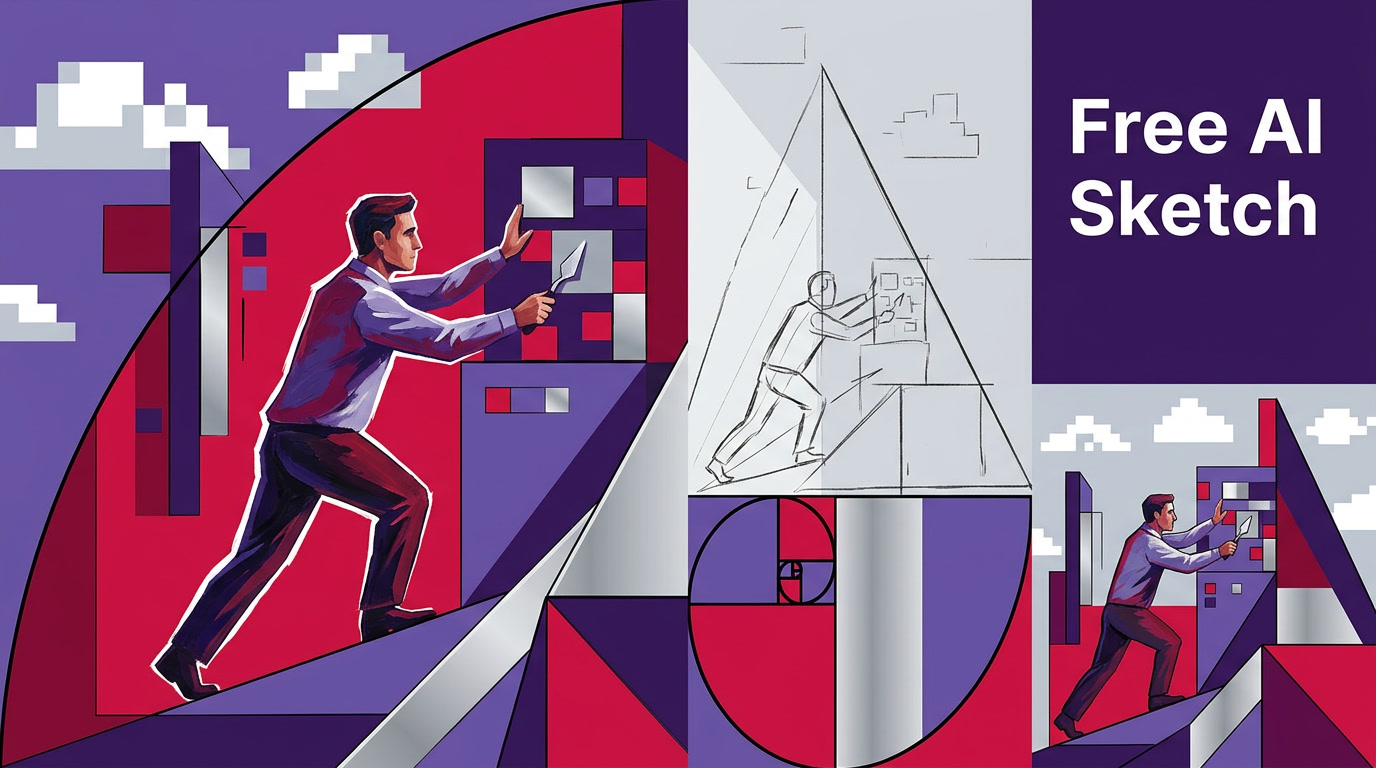
The best free AI sketch tools for turning rough drawings into finished illustrations differ by workflow phase, not by a single ranking. Sketch-to-image AI treats an uploaded drawing as a structural condition, using edge detection or scribble-map guidance to preserve composition while adding color, texture, and rendering style. This guide puts six free-tier generators through the same workflow so you know exactly what each one costs in time, friction, and creative control before committing.
Which Free AI Sketch-to-Illustration Tools Are Worth Using?
The six free AI sketch tools most relevant to working designers are Krea AI, Adobe Firefly, Canva Sketch to Life, Leonardo.Ai, Stable Doodle, and Scribble Diffusion. They differ in whether they use ControlNet-based conditioning or softer image-to-image guidance, how many free generations each plan allows, and whether free outputs carry commercial use rights.
ControlNet is the open-source conditioning architecture that feeds a sketch’s edge map as a control signal alongside a text prompt, forcing the generator to follow structural lines rather than treat the drawing as a loose style hint. Tools built on ControlNet preserve composition noticeably better than plain image-to-image pipelines, which is why Stable Doodle and Leonardo.Ai consistently produce outputs closer to the original sketch geometry.
| Tool | Free Plan Type | Sketch Input Method | Composition Fidelity | Watermark (Free) | Commercial Use (Free) |
|---|---|---|---|---|---|
| Krea AI | Daily compute quota | Draw in-canvas or upload | Moderate (style-weighted) | No | Verify current terms |
| Adobe Firefly | Monthly generative credits | Upload image reference | High (structure + style sliders) | No | Yes (Content Credentials) |
| Canva Sketch to Life | 7 free credits/day (Canva, 2026) | Draw in-app or upload | Moderate | No | Verify current terms |
| Leonardo.Ai | Daily token allowance | Upload + Image Guidance panel | High (guidance strength slider) | No | Verify current terms |
| Stable Doodle | Limited free generations | Upload sketch | High (ControlNet-based) | No | Verify current terms |
| Scribble Diffusion | Free (queue-based) | Draw in-browser | Moderate | No | Open-source; check model license |
How Does Each Tool Handle Your Sketch?
Each free AI sketch tool uses a different conditioning method: Krea AI renders live as you draw; Leonardo.Ai exposes a guidance strength slider; Adobe Firefly respects structure through reference sliders; Canva Sketch to Life integrates directly into your layout; Stable Doodle uses ControlNet scribble maps; Scribble Diffusion runs entirely in-browser with no account required. Knowing these differences prevents wasted credits and surprise rewrites.
Krea AI is built around a real-time canvas that re-renders as you draw. Upload a rough character sketch or scribble directly in the browser and the output updates continuously as you add lines, adjust the style prompt, or tweak the image influence slider. Krea also supports full image-to-image upload for tighter sketches, letting you bring in a scanned drawing and cycle through multiple style interpretations quickly. The free plan includes a daily compute quota; resolution is capped below print requirements on the free tier, but it is more than sufficient for ideation and storyboard work.
Adobe Firefly takes a different approach: you upload a reference image and use Structure and Style reference sliders inside Firefly’s Generate Image workflow to control how closely the output mirrors the drawing’s proportions and aesthetic. Outputs carry Adobe Content Credentials, a provenance standard that records AI involvement and model source, making Firefly the most defensible option for client-facing work. The free monthly credit allocation covers occasional illustration jobs but runs out quickly during intensive iteration sessions.
Canva Sketch to Life is the right pick when you are already building the final layout inside Canva. According to Canva’s documentation (Canva, 2026), the feature provides 7 free daily credits for sketch-to-illustration generation, with that allowance rising to 20 credits per day for accounts registered with a business email. You can draw directly on Canva’s canvas or import a scanned sketch, then generate without leaving the design file. The output drops straight into your layout as a placed element, removing the typical export-reimport loop entirely.
Leonardo.Ai is the most configurable free AI sketch tool for composition fidelity. Its Image Guidance panel exposes a strength slider that determines how rigidly the model follows your uploaded sketch structure versus drifting toward its own interpretation. Lower values around 0.3 produce looser, style-dominant results; higher values around 0.8 keep anatomy and composition close to your original lines. Leonardo.Ai also supports multiple model checkpoints, so you can switch between illustration, concept art, and photorealistic styles without switching platforms. Token cost per generation varies with resolution, so the free daily allowance stretches furthest at mid-resolution outputs.
Stable Doodle, hosted on Clipdrop, runs a ControlNet-based pipeline. You upload a sketch, pick a style preset such as digital art, comic book, or photographic, and the model maps your line art directly to the output structure. Because Stable Doodle uses ControlNet’s scribble conditioning, composition fidelity tends to be notably stronger than tools using softer image-to-image guidance. Free generations are limited in number, so Stable Doodle is best suited to quick concept validation rather than sustained iteration on a single project.
Scribble Diffusion is an open-source browser tool built on ControlNet’s scribble-map conditioning, which lets the model interpret rough, abstract marks as structural constraints without requiring clean line art. Even loose gesture strokes produce a recognizable, compositionally structured output because the model holds the scribble geometry as an edge-map guide throughout generation. The in-browser canvas handles edge extraction automatically from whatever you draw, removing any separate file-preparation step: draw directly in the browser, type a prompt, and submit. Results arrive via a shared inference queue rather than instantly, and output resolution is modest, making it most practical for prompt validation rather than production-quality rendering.
Which Tool Works Best for Live Ideation vs. Polished Delivery?
Krea AI is the strongest free option for live ideation because of its real-time canvas feedback loop. For polished, client-ready delivery, Adobe Firefly produces cleaner outputs with clearer commercial documentation. Leonardo.Ai sits between the two: strong composition control across iterations without the production finish Firefly provides. Live ideation and final delivery are different problems, and no single free tool handles both equally well.
For live ideation, Scribble Diffusion and Stable Doodle are practical secondary options when you need a single rough concept fast and want to avoid creating an account. Neither tool offers Krea AI’s interactive drawing feedback, but both move from sketch to render faster than any tool requiring a multi-step file upload interface.
For polished delivery, According to Adobe, Firefly’s models are trained on licensed stock and creator-consented data, which is why Firefly outputs tend to read as finished illustration rather than synthetic texture. The Content Credentials system also provides a paper trail if a client questions image provenance. Leonardo.Ai is the better pick when you need a character or product concept to stay geometrically consistent across multiple generations, which is precisely where its guidance strength slider outperforms a single-output tool like Firefly.
Key Takeaways
- Sketch fidelity and visual polish are different outputs: a visually striking generation can completely ignore your original composition.
- ControlNet-based tools such as Stable Doodle and Leonardo.Ai extract an explicit edge map from your drawing, making them structurally more reliable than soft image-to-image references.
- Krea AI’s real-time canvas is best suited to ideation and storyboarding, not production-ready asset delivery.
- Adobe Firefly is currently the most clearly documented option for commercial use on the free tier, backed by a content provenance standard.
- Canva Sketch to Life removes a workflow step entirely for designers who already build client layouts inside Canva.

What Are Free-Plan Limits and Commercial Use Terms?
“Free to generate” and “free to sell” are not the same thing. Adobe Firefly is currently the clearest free-tier option for commercial use among these six tools, backed by its Content Credentials system. For all other tools, verify current terms directly before client use, since policies shift frequently and third-party summaries go stale.
Leonardo.Ai’s free plan sends outputs to a public gallery by default. Designers working on a confidential brief must confirm whether their account tier includes private-mode generation before uploading a client’s character concepts. Generation visibility and licensing are separate issues: check both, not just one.
Stable Doodle’s free tier caps generation volume, so a client needing a rapid batch of concept variations may exhaust the free allowance in a single session. Krea AI’s free compute quota is similarly finite; heavy iterative sessions will hit the daily limit before a typical concept phase wraps up. Neither tool is broken by these limits for occasional use, but project-volume planning matters.
Scribble Diffusion is built on open-source model weights, so the copyright position depends on the specific model license rather than a platform policy. For Krea AI, check the current free-plan terms directly on the site at the time of delivery. A reliable cross-tool check: generate a test output, inspect whether it carries a watermark or platform logo, and search the terms page for the phrase “commercial use” before sending any AI-assisted asset to a client.
How Should You Prepare a Sketch Before Uploading?
Input quality directly shapes output fidelity across all six free AI sketch tools. A clean, high-contrast sketch with a clear subject crop produces significantly better edge maps than a smudgy, low-contrast scan. Adjusting contrast, removing stray marks, and using medium-to-heavy line weights gives the AI cleaner structural data to follow, regardless of which tool you use.
For digital sketches from Procreate, Illustrator, or Krita, export a flattened layer with the background removed as a PNG, not a compressed JPEG. Compression artefacts create noise in the edge map and introduce unintended detail into the AI’s structural guidance. For icon sketches specifically, simple silhouettes with clear negative space consistently produce better results than detailed cross-hatched drawings, where hatch lines register as structural information rather than shading.
To start today: scan your next rough character sketch, prep it using the five steps in the workflow above, and run it through Leonardo.Ai’s Image Guidance on the free plan with guidance strength set to 0.60. Then open the same prepped sketch in Krea AI’s real-time canvas. Comparing both outputs side by side from an identical input is the fastest way to find which tool fits your illustration style before you invest time in either workflow.
| feature | Krea AI | Adobe Firefly | Canva Sketch to Life | Leonardo.Ai | Stable Doodle | Scribble Diffusion |
|---|---|---|---|---|---|---|
| guidance method | live render | edge detection | in-layout | Image Guidance slider | ControlNet | scribble map |
| free commercial use | verify | Content Credentials | verify | verify | verify | verify |
| best for | rapid concept | client delivery | layout workflow | iteration control | quick concept test | prompt validation |
Frequently Asked Questions
What is the best free AI tool to turn a sketch into a finished illustration?
The best free AI sketch tool depends on your workflow stage. For polished, client-ready output with documented commercial transparency, Adobe Firefly leads among free-tier options because of its Content Credentials system and licensed training data. For tight composition control across multiple iterations on a single character or product concept, Leonardo.Ai’s Image Guidance panel gives designers more predictability. Neither replaces manual finishing, but both produce outputs detailed enough to use as a strong illustration starting point without additional paid tools.
Which free sketch-to-image tool preserves the original drawing best?
Tools using ControlNet-based conditioning, specifically Stable Doodle and Leonardo.Ai with Image Guidance enabled, follow sketch structure more faithfully than tools relying on softer image-to-image pipelines. ControlNet extracts an explicit edge map from the drawing and holds it as a structural constraint throughout the diffusion process rather than treating the sketch as a loose reference. If edge-map preservation is the top priority, Stable Doodle and Leonardo.Ai are worth testing first before exploring the live-canvas approach of Krea AI.
Can I use free AI-generated illustrations commercially?
Adobe Firefly’s free plan is currently the most clearly documented option for commercial use among these six tools, supported by its Content Credentials provenance system. For Canva Sketch to Life, Leonardo.Ai, Krea AI, and Stable Doodle, commercial rights on free tiers are subject to each platform’s current terms, which shift as products evolve. Read the terms page directly at the time of delivery, not from a third-party summary. One practical flag: if a free plan generates into a public gallery by default, client confidentiality may already be compromised before you reach the licensing question.
How do I prepare a sketch before uploading it to an AI image generator?
Scan at a minimum of 300 DPI and convert the file to high-contrast black lines on a white or transparent background before uploading. Export as PNG rather than JPEG to avoid compression artefacts, which introduce noise into the edge-detection step and cause unintended structural detail in the output. Medium-to-heavy line weights survive the ControlNet extraction process far better than thin or faint strokes. For digital sketches, flatten to a single layer and remove textured paper backgrounds before export so the AI reads only your intentional marks.
Which AI sketch tool generates images live while you draw?
Krea AI is the primary free-tier option for live, in-canvas rendering. As you draw on Krea AI’s canvas or adjust a sketch, the generation updates continuously without a manual submit step, creating a feedback loop that lets you explore composition variations by drawing rather than re-uploading files. Scribble Diffusion also accepts in-browser drawing, but submits each attempt to a shared inference queue, making the experience closer to a batch generator with drawing input than a live canvas. For live ideation sessions, Krea AI’s approach is qualitatively different enough to be worth setting up a free account specifically for that phase of your workflow.