Last Updated: February 12, 2026
TLDR
- Remotion is a React-based framework that enables you to create MP4 videos programmatically without Adobe After Effects or traditional video editing software
- React components replace timeline-based editing, allowing designers to build animations using familiar design logic combined with code
- The Remotion Editor offers drag-drop functionality for designers who prefer visual workflows before exporting MP4 files
- SVG and video asset imports streamline integration with your existing design workflows and brand libraries
What is Remotion
What is Remotion and Why Graphic Designers Need It
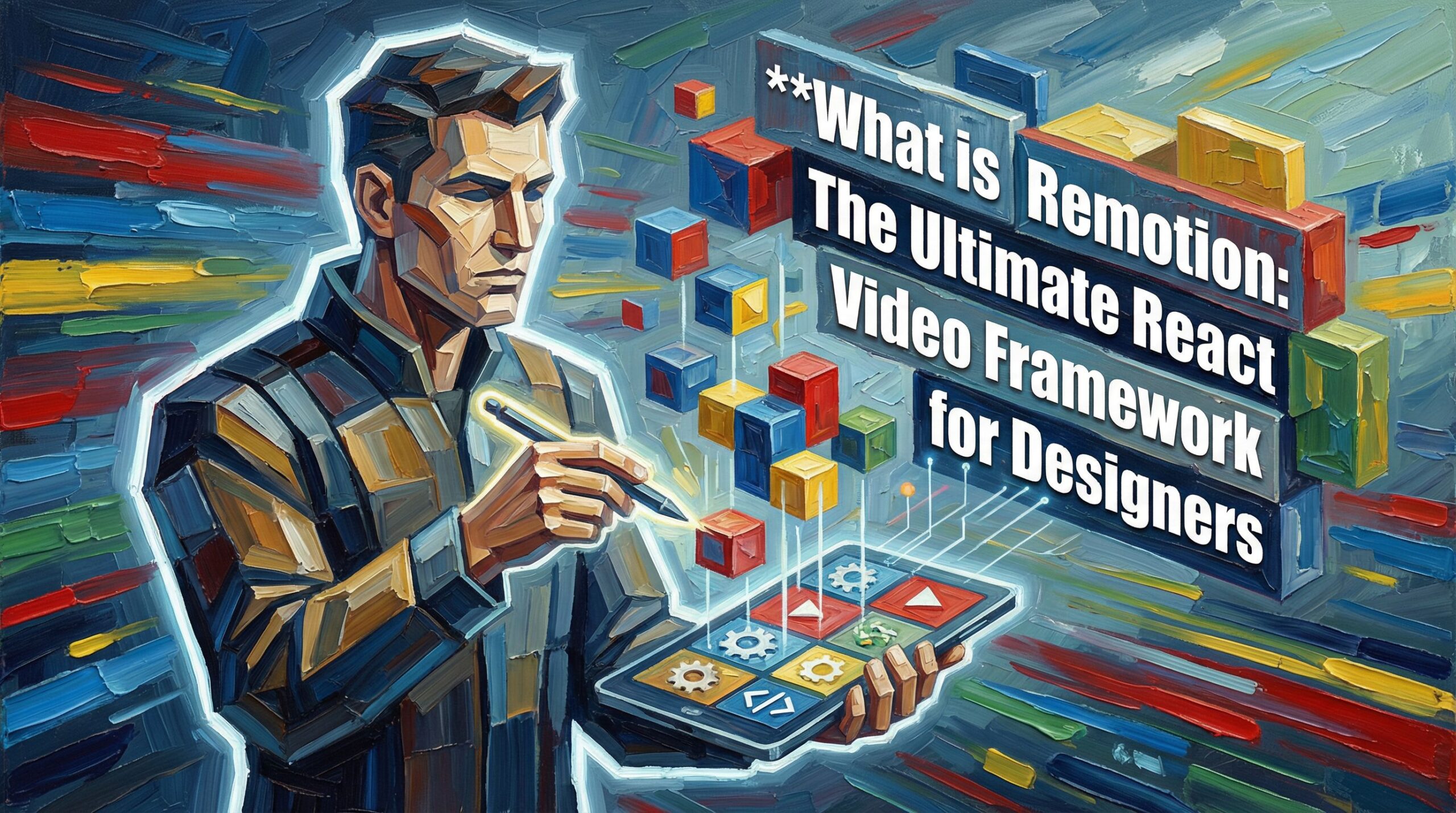
Imagine creating animated videos the way you build components in Figma. Remotion is a React-based framework that lets graphic designers and developers generate real MP4 videos programmatically, without touching timeline-based software like After Effects. Instead of manually keyframing animations frame by frame, you write React components that describe how your video should look and move.
For graphic designers, this opens a new door. You can parametrize your designs, meaning one video template can generate hundreds of personalized videos with different text, images, or brand colors. According to the official Remotion website, the framework supports “creating real MP4 videos with React” and enables “parametrizing content” for server-side rendering. This capability transforms how brands create explainer videos, data visualizations, and personalized customer communications.
The learning curve is shallow. The framework consists of only 5 to 6 core APIs, making it accessible even if your React experience is limited. You can start simple with basic animations and scale to complex motion graphics as your comfort grows.
Quick Win: Reduce video production time from days to hours by templating your designs once and rendering variations programmatically.
The Designer-Friendly Approach
Traditional video creation for designers means opening After Effects, creating layers, setting keyframes, and exporting. Remotion flips this workflow. Instead, you define your video structure using React JSX, which feels natural if you’ve worked with component-based design systems. The framework handles the heavy lifting of rendering frames and compiling them into MP4 files.
What makes this special for graphic designers is that you maintain creative control without learning extensive coding. Your design instincts about spacing, timing, and visual hierarchy translate directly into React component structure. The Remotion documentation on client-side rendering explains that the framework supports SVG elements, making it seamless to import vector artwork from your design tools.
How Remotion Works for Video Creation
Understanding Remotion’s rendering process demystifies how it converts your components into video files. When you create a Remotion project, you define the video duration, frame rate, and dimensions just like in any video editor. Then you write React components that render at each frame. The framework captures each frame as an image and compiles them into an MP4 file.
The process happens in two main workflows: client-side rendering for preview and testing, and server-side rendering for production videos. Client-side rendering uses your browser’s canvas to display previews in real time. This lets you see changes instantly as you adjust component props. Server-side rendering generates the final MP4 files using headless browser technology, ensuring consistency and quality.
Remotion’s technical architecture includes several key components. The AbsoluteFill component creates full-frame containers similar to artboards in design software. The Sequence component manages timing, letting you orchestrate when different elements appear and animate. You can import SVG files, images, and video assets directly, making asset integration straightforward for designers accustomed to mixing media types.
A practical example from the Prismic tutorial on Remotion shows how the AbsoluteFill component structures a GitHub contributions video with layered elements. The template approach means you write the structure once, then pass different data to generate unlimited variations. This is particularly valuable for personalized videos where each viewer sees content tailored to their interests or behavior.
Quick Win: Set up a template in 2-3 hours and generate 100 customized videos in minutes by changing parameter values.
Client-Side Rendering for Designers
Client-side rendering in Remotion works through your browser. When you run the development server, Remotion uses canvas rendering to capture each frame in real time. This approach is ideal during the design phase because you see instant feedback as you tweak colors, timing, and positioning. The preview updates live without re-rendering the entire video, saving you precious iteration time.
Designers benefit from this immediate visual feedback. You can adjust animation speed, test text readability, and verify color consistency without waiting for full renders. The Remotion Preview tool lets you scrub through your video timeline, jump to specific frames, and export still images for reference.
Server-Side Rendering for Production
When your design is finalized, server-side rendering takes over. This process runs headless, meaning no visual interface. It’s faster and more reliable for batch processing. You can render videos on cloud infrastructure, enabling scalable production of hundreds or thousands of personalized videos. Many brands use this approach to generate customized social media content, email marketing videos, or dynamic customer success videos.
Key Features and Tools for Designers Using Remotion
Remotion includes several features specifically designed to make video creation feel familiar to graphic designers. Understanding these tools helps you leverage the framework’s full potential without getting lost in technical complexity.
The Remotion Editor Starter provides a visual interface for designing animations without writing code. It offers drag-and-drop functionality, rotation controls, and snapping features that mirror professional design software. If you’re hesitant about coding, the Editor gives you a gentler entry point into Remotion’s capabilities. You can build basic animations visually and export them as components for customization.
SVG support is game-changing for designers. You can export vector artwork from Illustrator or Figma and import it directly into Remotion. The framework renders SVGs as true vector graphics, not rasterized images, maintaining quality at any scale. This means your brand logos, icons, and illustrations stay crisp and editable within your video templates.
The timing and sequencing system in Remotion mirrors After Effects’ timeline concept but implements it through components. The Sequence component groups elements with shared timing. The Frame component lets you target specific frame numbers for animations. The useFrame hook provides frame-by-frame control for complex animations. These tools give you the granular control designers expect while keeping syntax straightforward.
Quick Win: Import your existing SVG assets without modification, cutting design setup time by 50 percent or more.
Animation and Motion Design Capabilities
Remotion’s animation support covers the range of motion design work that designers regularly handle. Spring physics, linear interpolation, easing functions, and keyframe-style animations are all available. You can create entrance animations, transitions between scenes, and complex motion sequences that respond to data changes.
What sets Remotion apart is that animations live in code but read naturally. Instead of the abstract keyframe metaphor, you describe animation mathematically. This sounds intimidating but actually gives designers more precise control. A spring animation in Remotion uses physics parameters that professionals recognize from tools like Framer or Principle.
Remotion vs Traditional Tools Like After Effects
Many designers wonder if Remotion can replace After Effects. The answer depends on your workflow and project type. Both tools excel in different scenarios, and understanding the differences helps you choose wisely.
After Effects excels at manual, frame-by-frame animation work and complex visual effects. If you’re creating a one-off cinematic intro sequence with intricate particle effects and hand-crafted animations, After Effects remains superior. The software gives you absolute visual control from start to finish. However, After Effects struggles with parametrization and automation. Creating 1,000 variations of the same video concept requires exporting each one manually or writing complicated scripts.
Remotion shines when you need to generate multiple video variations from a single template. If your brand creates personalized customer onboarding videos, dynamic data visualizations, or content that changes based on external inputs, Remotion becomes dramatically more efficient. You build the design logic once, then render unlimited variations by changing parameters. This efficiency is what designers and developers increasingly demand.
The creative control differs too. In After Effects, you think visually and watch your timeline. In Remotion, you think in components and data flow. For designers with some coding comfort, Remotion often feels liberating. For those who prefer pure visual tools, After Effects remains more intuitive. The Remotion blog introducing the framework explicitly positions it as a tool for parametrized, programmatic video creation rather than a direct After Effects replacement.
One critical advantage Remotion offers is integration with your development workflow. If you work with engineers who use React, Remotion videos integrate directly into your codebase. Designers and developers can collaborate more seamlessly, with version control and collaborative tools built in. This breaks down silos that often exist when designers use entirely separate software.
Quick Win: Integrate video generation directly into your web application, enabling real-time personalization without exporting files.
When to Use Remotion Over After Effects
Choose Remotion if you need parametrization, automation, or integration with web applications. Use After Effects for highly visual, manual animation work where each frame is hand-crafted. For many modern brands, the answer is both tools working in tandem. Design motion graphics in After Effects, export key elements as SVGs, then build your Remotion template around them.
Integration with Your Existing Design Workflow
The practical advantage of Remotion is how it fits into your existing design process. You continue using Figma for layout design and Illustrator for vector graphics. Remotion becomes the output layer where your designs come alive as video. This modular approach means you dont need to abandon tools you know and love.
Getting Started: Designer-Friendly Tutorial for Remotion
Starting with Remotion requires Node.js and a basic text editor, but the setup is surprisingly simple. Create a new Remotion project using the command line, and the framework scaffolds a starter template with example components. Within minutes, you’re viewing a preview in your browser.
Your first Remotion project should be straightforward. Start with a static background, add some text, and animate it in over 2 seconds. This teaches you the core pattern: define a component that returns JSX, use frame counting to calculate animation progress, and preview in real time. Once this feels natural, add complexity gradually.
The Remotion documentation provides extensive examples covering common scenarios. Create a title sequence, animate a bar chart, fade images in sequence, or build an animated explainer. Each example shows both the component code and the resulting video, helping you understand cause and effect.
For designers specifically, the learning path differs slightly from developers. You might skip advanced React concepts and focus instead on the visual tools. Use the Remotion Editor to design basic layouts, then enhance them with timing and animation logic. This visual-first approach reduces the coding barrier while still leveraging Remotion’s power.
Quick Win: Build and preview your first animated video in under 30 minutes using the starter template and one example component.
Step-by-Step Setup Process
First, install Node.js on your machine. Open your terminal and run the create-remotion command to scaffold a new project. Install dependencies by running npm install. Navigate to the project directory and start the development server with npm start. Your browser opens a preview showing an example composition. Edit the example component in your editor, save the file, and watch the preview update instantly. This hot-reloading is crucial for rapid iteration. Experiment with changing colors, text, duration, and animation values to build intuition.
Key Concepts for Designer-Focused Learning
Understand compositions as your video canvas. Understand components as the building blocks within that canvas. Understand props as parameters you can change to customize each video variation. These three concepts form the foundation. Once they click, the rest of Remotion’s API feels intuitive because everything builds from these mental models.
Real-World Examples and Remotion Showcases
The best way to understand Remotion’s possibilities is seeing what others have built. The official Remotion showcase displays real projects from studios and brands using the framework. Explore dynamic instructional videos, brand-consistent explainers, and personalized content examples. These cases demonstrate the range of creativity possible within Remotion’s architecture.
One compelling example involves generating GitHub contribution summary videos. Designers and developers collaborated to create a template showing a user’s coding activity as an animated graph over the past year. Each video is unique to the viewer, displaying their personal statistics. This exemplifies Remotion’s strength: taking data that varies per user and rendering it as professional-quality video without manual effort.
Another showcase features personalized product demo videos. A brand records multiple short animation sequences showing product features. The template combines these sequences with personalized text and branding, generating unique videos for each sales prospect. Sales teams report higher engagement rates on personalized videos, and Remotion makes scaling this approach feasible.
Animated data visualization projects also appear frequently in the showcase. Charts, graphs, and animated infographics that would take days to produce in After Effects render automatically from datasets. This opens possibilities for brands that generate time-sensitive content, from financial summaries to marketing dashboards.
These examples reveal the common thread: when your content is data-driven or user-specific, Remotion provides efficiency that traditional tools cannot match. Study a few showcase projects that match your design goals. Examine how they structure compositions, handle timing, and manage visual hierarchy. Then adapt those patterns to your own projects.
Quick Win: Adapt an open-source Remotion example to your brand assets, reducing first-project development time to a single workday.
Tips and Best Practices for Graphic Designers Using Remotion
Successful Remotion projects follow patterns that merge design discipline with code organization. Start with a clear design system. Define your color palette, typography, spacing system, and component library before writing a single line of animation. This discipline carries over from your Figma projects and ensures visual consistency across video variations.
Keep compositions modular. Design each scene as its own component, then combine them into a larger composition. This approach makes templates easier to maintain and reuse. If you need to update a logo animation, you modify one component rather than searching through hundreds of lines for all instances.
Test with real data early. Placeholder text often behaves differently than actual content. A name might be 5 characters or 50. A product description might be one sentence or three paragraphs. Build your layout to handle variable content lengths without breaking. This is where designers often trip up but is essential for production-ready templates.
Optimize for rendering time. Complex compositions with many animated layers take longer to render. Start simple and optimize only if rendering becomes a bottleneck. Profile your video to see where time is spent. Often, small changes like reducing animation frame rates or simplifying gradients deliver large speedups.
Document your templates thoroughly. Include comments explaining what each component does, what props it accepts, and what values look good. Future you, and anyone else using your templates, will appreciate this consideration. Treat template documentation like you would product design specifications.
Quick Win: Create a design system document with approved colors, fonts, and spacing before starting your first Remotion template, preventing costly rework later.
Performance Optimization for Video Rendering
Rendering speed matters when producing hundreds of videos. Optimize by minimizing DOM complexity in your components. Avoid unnecessary re-renders by understanding React’s dependency arrays. Use static images instead of generating graphics at runtime when possible. These practices, familiar to React developers, become even more important in Remotion where each optimization directly reduces server costs and rendering time.
Collaborating with Developers on Remotion Projects
Remotion projects benefit from designer-developer collaboration. The designer brings motion intuition and visual taste. The developer brings code architecture and data integration expertise. Establish clear division of labor. Designers focus on components, layouts, and animation logic. Developers handle state management, data fetching, and server rendering setup. Regular communication prevents misunderstandings and keeps projects moving efficiently.
Actionable Checklist for Your First Remotion Project
- Install Node.js and create a new Remotion project using the starter template
- Design your layout in Figma or Illustrator, then translate it to Remotion components
- Export vector graphics as SVGs and test importing them into your composition
- Build one simple animation, adjust timing, and preview the result in real time
- Define your color palette and typography system as component props for consistency
- Test with variable content lengths and data types to ensure your template is robust
- Render a short MP4 and verify video quality matches your expectations
- Document your template components with clear comments and usage instructions
- Set up version control in Git so your template remains organized and collaborative
Quick Takeaways
- Remotion enables parametrized video creation where one template generates unlimited variations by changing component props, versus manually producing each video in After Effects
- React-based structure appeals to designers comfortable with component logic, reducing the learning curve compared to learning a entirely new animation paradigm
- SVG and asset integration seamlessly connects your existing Figma and Illustrator workflows to Remotion video outputs without format conversion overhead
- Client-side preview with instant feedback during design iteration accelerates your creative process and removes the render-wait cycle familiar from After Effects
- Collaborate efficiently with developers by maintaining clear component boundaries and letting each discipline focus on their core strength within the shared Remotion codebase
- Batch render dozens of personalized videos in minutes using server-side rendering, transforming video production from a manual, time-intensive process to an automated, scalable system
- Start simple with a single animated element, then scale complexity gradually as you internalize Remotion’s patterns and gain confidence with the framework’s capabilities
Conclusion
Remotion represents a fundamental shift in how designers approach video creation. Instead of manually animating each frame in a timeline, you describe your video structure using React components and let the framework handle rendering. For designers and creative teams, this shift is liberating. You maintain full creative control while gaining the power of programmatic generation and data-driven personalization.
The framework isn’t a perfect replacement for After Effects, nor does it try to be. Rather, it’s a complementary tool that excels in scenarios where traditional video software struggles. When you need to generate multiple video variations, integrate video into your web application, or collaborate seamlessly with developers, Remotion becomes indispensable.
Getting started requires learning some React basics and understanding Remotion’s component model. The effort pays off quickly. Within a few hours, you’re building and previewing videos. Within days, you’re confident enough to tackle real projects. The official documentation, extensive examples, and growing community mean help is readily available when you hit snags.
If you produce video content as part of your design work, exploring Remotion is worth your time. Start with the official tutorial, build something simple, and see how it fits your workflow. You might discover that programmatic video generation is exactly what your creative process has been missing. The future of video creation increasingly belongs to tools that blend design sensibility with code efficiency, and Remotion leads that charge.
Ready to begin? Head to the Remotion website, follow the installation guide, and create your first composition today. Your next video awaits, ready to be generated programmatically.
Frequently Asked Questions
Q – What is Remotion.dev?
A – Remotion.dev is a React-based framework for creating real MP4 videos programmatically. Instead of using timeline-based video editors, you write React components that define your video structure, animations, and content. The framework renders these components into MP4 files either client-side for preview or server-side for production-quality output.
Q – How does Remotion differ from After Effects?
A – After Effects excels at manual, frame-by-frame animation and visual effects work. Remotion specializes in parametrized, programmatic video generation where one template produces unlimited variations. After Effects is better for cinematic, hand-crafted work. Remotion is superior for automated video production, personalization, and integration with web applications and development workflows.
Q – Can graphic designers use Remotion without coding?
A – The Remotion Editor Starter provides a visual, drag-and-drop interface for building animations without writing code. However, full Remotion potential requires understanding React basics and component structure. Designers comfortable learning foundational React concepts can quickly become productive. The framework’s simple API of only 5-6 core functions keeps the barrier relatively low compared to other coding tools.
Q – What video formats does Remotion support?
A – Remotion primarily renders MP4 videos with H.264 codec and AAC audio. The framework also supports exporting individual frames as image sequences. For other formats, you can post-process the MP4 output through FFmpeg or similar tools. The focus on MP4 reflects the format’s universal compatibility and industry standard use in web and media applications.
Q – How do you render videos in Remotion?
A – Remotion offers two rendering approaches. Client-side rendering uses your browser’s canvas for real-time preview during design iteration. Server-side rendering runs headless and generates production-quality MP4 files using Node.js. For batch production of personalized videos, server-side rendering scales across cloud infrastructure, enabling rapid generation of hundreds of unique videos from a single template with varying parameters.